Your WordPress site is up and still broken: why a 200 status is not enough
Your monitor says the site is up. A customer says they cannot buy anything. Both are telling the truth, and that is the awkward part.
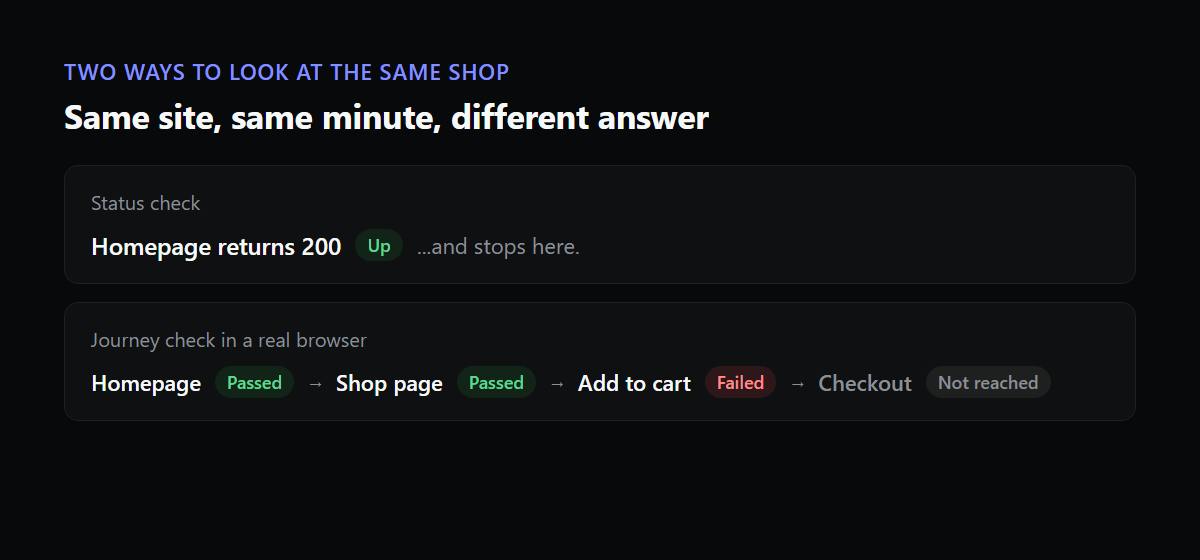
“Up” in most monitoring tools means one narrow thing: the server answered a request with a success status. A WordPress site can answer that request correctly and still be unusable, because the status code belongs to the page that was asked for, and nobody was asking for the page that was broken.
Ways a site is up and broken at once
These are the patterns that turn up again and again on WordPress sites. Every one of them returns a 200 on the homepage.
- A script error stops the “Add to cart” or “Place order” button from responding. The page loads fine, so the status is fine.
- A security or caching plugin redirects the login in a loop, or blocks the form after an update. The login page is reachable. Logging in is not.
- A checkout page loses its payment fields because a gateway script failed to load.
- A contact form stops sending mail after an SMTP setting changes. The form shows its “thank you” message regardless.
- A maintenance mode plugin leaves a “back soon” page up after the work finishes. Some of these return a normal success code instead of a 503.
- A theme or builder update pushes the mobile menu over the content, so a phone visitor cannot tap anything. Nothing is broken on a desktop screen.
- A page cache serves yesterday’s version of a page that has since been fixed or, worse, broken.
None of this shows up on a status check, because a status check never looks past the first response.
Three levels of checking
The status and the content
The cheapest improvement is to look for a word on the page. If the homepage must contain your business name or a line from the footer, a blank page, a database error screen or a defaced page fails the check, even though the server answered. It takes a minute to set up and removes a whole class of silent failures.
The steps that matter
Next, walk the flows that earn money. Sign in with a test account and confirm you land on the account page. Search for something and expect results. Add a product to the cart and reach the checkout. Submit the contact form and confirm it arrives. This needs a real browser rather than a plain request, because the faults above live in JavaScript and redirects that only a browser runs.
Be careful with checkouts. A monitor should stop short of paying, or use a payment method that is switched to test mode and a way to mark and delete the test order afterwards. A check that quietly creates real orders is its own kind of incident.
What it looks like
Some breakage has no error at all. The page loads, the code runs, and the layout is simply wrong. Comparing a screenshot against a known good one, on both a desktop width and a phone width, catches the menu that covers the page and the button pushed off the screen. It is noisier than the other checks, since ads, carousels and dates change on their own, so it works best on pages that hold still.
What this costs you
Browser checks are heavier than a status request, so they run less often. Checking a login every 30 minutes instead of every minute is normal. They also need upkeep. A scripted flow breaks when the site’s markup changes, and a test account needs to stay valid. If the person who set the flow up leaves, someone has to inherit it. Hand-written scripts tend to rot for exactly this reason, which is why tools that find the flows by reading the site’s menus and forms, and drop any that do not complete, are easier to live with.
The other cost is trust. A check that fails for its own reasons, such as a login that expired, teaches people to ignore it. The sensible default is that a failure is checked again before anyone is told, and that a flow the tool could not run successfully the first time is never turned into an alert.
A worked example
Imagine a small shop that sells ceramics. The owner installs a plugin update that changes how scripts are loaded. On the shop page the products still appear and “Add to cart” still looks normal, but clicking it no longer does anything because a script now loads after the button is ready. The homepage returns 200 in 180 milliseconds. A keyword check for the shop’s name passes. A visual check might show nothing wrong, since the page looks identical.
Only a check that clicks the button and then looks for a product in the cart notices. It fails on the first step, produces a screenshot of the page at that moment, and points at the first bad run. If the site also records which updates landed and when, the alert can say that the plugin changed ten minutes earlier. Without any of that, the owner finds out when the week’s sales come in low.
Where to start if you can only check three things
If you have to be selective, which is usual, these are the three to watch on most WordPress sites, in this order.
- The path to payment on a shop, because that is where lost revenue is easiest to measure.
- Sign in on any site where customers have accounts, because a login failure locks people out of something they paid for.
- The main contact or booking form, because a form that fails quietly loses enquiries you will never know about.
Everything else, from search to newsletter signups, can wait until those are covered.
What a useful failure alert says
An alert that says “site check failed” starts an investigation from zero. A good one saves the first ten minutes of it. It names the step that failed, such as “add to cart, product page.” It includes a screenshot from the moment of failure. It shows when the check last passed, so you know the window in which the fault began. And if the site’s change history is available, it lists what changed in that window. With that in hand, you can often name the culprit before opening the site, and the conversation with the client starts at “we found it” instead of “we are looking.”
That last piece is what the update history is for, and it is the reason the agency monitoring setup we describe keeps checking outside the site and uses a small plugin for the change record only. When the cause is not obvious, the recovery checklist covers what to do next.
Do you need all of this for a small site?
Often not. A five page brochure site with one contact form is well served by a status and keyword check, a certificate watch and one scheduled test of the form. The heavier checks earn their cost where a failure loses money or locks customers out. Spend the effort in proportion to what a bad hour would cost the owner, and revisit the choice when the site grows a shop or a members area.
Keeping a check honest
A deeper check is only worth having if it rarely cries wolf. A few habits help. Aim checks at pages that do not carry changing content, such as a rotating banner or a live chat bubble, and make the check wait for the page to settle before it judges it. Use a dedicated test account for sign in, so a password reset or a tidy-up of old users does not break the check. Treat third-party widgets with suspicion: if a review badge on the page is slow, that should not fail a checkout test.
It also helps to decide what a failure means before you set it up. A failed login check on a site with five members is a different animal from one on a site with five thousand. Put the strictest alerting on the flows that cost money, and let the rest raise a note for the next working day. The aim is for every message to be one somebody acts on.
Check a site now
Run a free check on any address to see what a plain status check reports. It takes a few seconds and needs no account.
For the parts a status check cannot see, Website is Up signs in, adds to cart and checks out in a real browser, looks at the page on a phone, and sends you a screenshot of the step that failed. The first site is free, and the product tour shows each check. If a shop is what you worry about, how to trace a broken WooCommerce checkout is the next thing to read.